
Here’s a step by step guide on how to reset your Windows 10 account password, be it local, or Microsoft Account-based.
If you are a Windows 10 user on one or more devices, and you have set up that Windows 10 installation using a password-protected local or Microsoft Account, then there is a very real chance that you may actually get locked out of the account after forgetting the password.
If that happens, don’t panic just yet as we have you have covered with this. Simply follow our easy step by step instructions in the walkthrough detailed below on how to not only determine the account type used on your Windows 10 installation, but how to quickly change that password to one that you will remember and can regain access to the account with on your PC.
So, without any further delay, here’s how you can go about changing your login account’s password for a local account or a Microsoft Account on a PC running Windows 10. Ready? Here we go!
To find out what type of account you are using:
Step 1: On the machine in question, press the Win logo key + I to open up the Windows 10 Settings app.
Step 2: Within the Settings app, navigate to Accounts. As you might have guessed, this is where the list of active accounts are accessed and viewed.
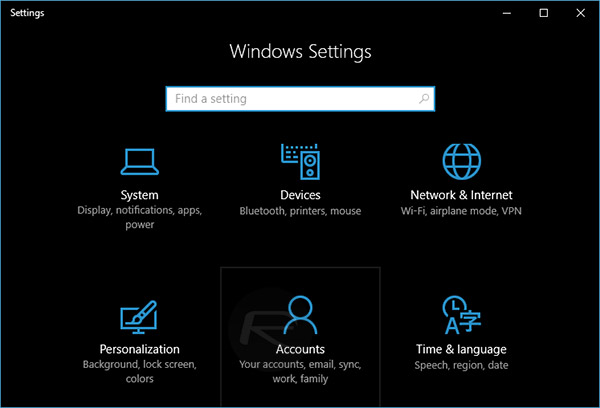
Step 3: You can check the type of account in this section based on its username or email address. A local account will show the username of said account, whereas a Microsoft Account will show an email address against it.
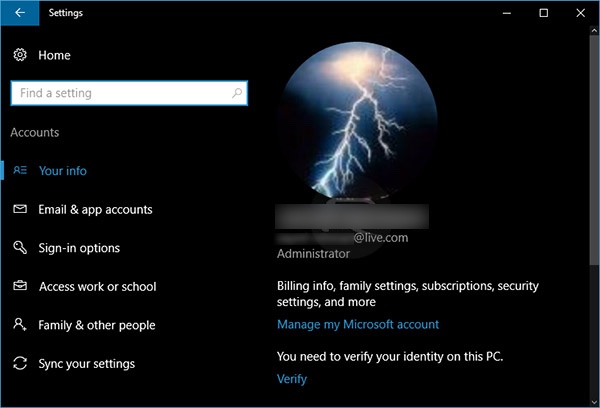
Resetting password for Microsoft Account:
Step 1: In a web browser, navigate to account.live.com/password/reset and select the “I forgot my password” option and click Next.
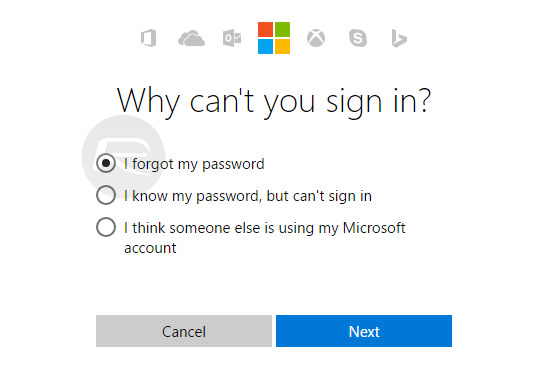
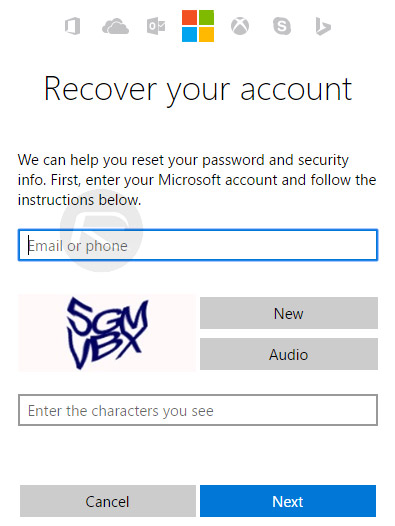
Step 2: When asked, enter either the email address, or a telephone number associated with that Microsoft Account. There is also a Captcha to solve to prove that you are a human. Enter all requested information and click Next.
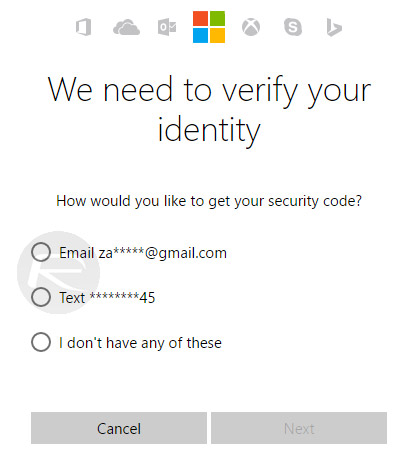
Step 3: You now need to verify your identity. Microsoft gives you a number of ways to do this, such as using an app, or having a code issued to an email address or telephone number via text. Select the preferred method and click Next.
Step 4: On the next page, enter the seven digit code that was issued to you by Microsoft via your chosen mechanism. Once entered, click Next.
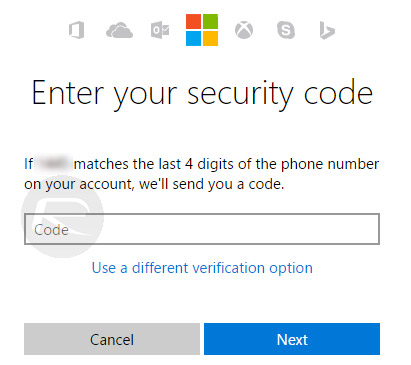
NOTE: if you have two-factor authentication enabled on said account, you may be asked to repeat the process with a different mechanism.
Step 5: Now it’s time to reset the password. Enter the new password in the available fields and click Next.
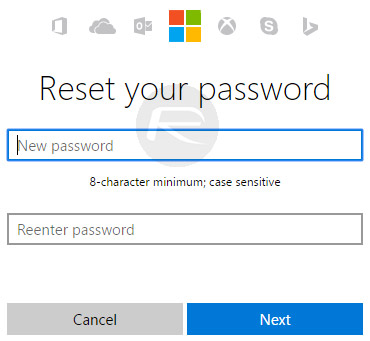
Step 6: The password will be changed – as long as it meets Microsoft’s requirements for a safe and secure password – and you will be presented with a “Your account has been recovered” message.
That’s it! You can go ahead and login into your Windows 10 PC which is associated with this Microsoft Account using the new password that you just set.
Resetting password for a Local account:
But what if you are using a local account for logging into Windows 10? Here’s what you need to do to reset the password for it:
Step 1: To begin, you need to download the Trinity Rescue Kit from trinityhome.org, which is basically an ISO image file.
Step 2: You now need to make a bootable USB or CD which will allow you to boot into the Trinity Rescue Kit upon powering up the machine. We’ll recommend using Rufus to create this bootable disc/drive.
Step 3: Once done, you’ll need to boot your PC with this drive. To do this, first make sure your PC is set to boot from CD / USB, and not the HDD. This option can be configured from system BIOS. With the bootable CD / USB in place, restart the PC and it will automatically boot into the Trinity Rescue Kit.
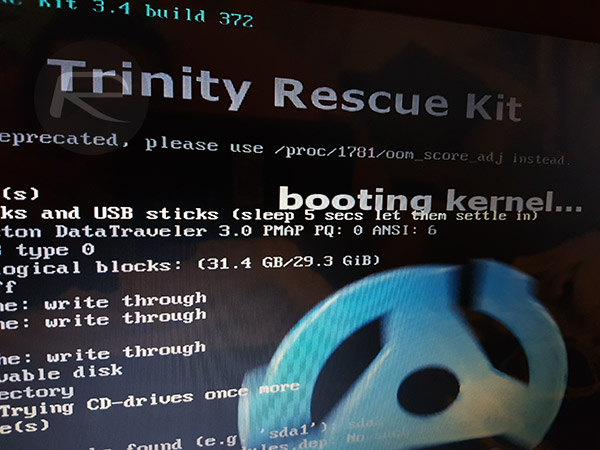
Step 4: Once Trinity Rescue Kit boots up and shows you the “Welcome” message, enter this command to list all local usernames on the system: winpass -l
Step 5: Now that you see the username you want to reset the password for, enter this command followed by that username: winpass -u username
Step 6: You will now see a series of dialogues, and when asked to disable Syskey, make sure you press the N key.
You will then be given the choice to reset the password, or disable it, or even make the selected user the administrator of the system. Select your choice and then follow the onscreen instructions to complete the password reset process for your local account.
You may also like to check out:
- Windows 10 Product Key And Activation: How To Find It And How It Works
- Download Windows 10 Pro ISO File Without Product Key From Microsoft
- Create Ad Hoc WiFi Hotspot In Windows 10, Here’s How
- Fix No Wi-Fi Available After Windows 10 Upgrade Issue, Here’s How
- How To Boot Into Windows 10 Safe Mode On Your PC [Tutorial]
You can follow us on Twitter, add us to your circle on Google+ or like our Facebook page to keep yourself updated on all the latest from Microsoft, Google, Apple and the Web.
